The usual way to cut highlights — trim, export, undo the trim, find the next moment, trim again — costs minutes per clip and your patience by the third one. The quick-save way: scrub to the moment, tap Clip, nudge the trim, save. A few seconds per highlight, and the long video never gets touched.
The problem with hour-long recordings
A tripod recording of a match or training session is one giant file in which maybe three minutes matter: two good goals, one bad defensive sequence, a serve worth teaching from. Those moments are needed as separate short clips — to send to a parent, to queue up for a team film session, to pair with a reference video for side-by-side comparison. What you don't want is to re-export an hour of 4K footage ten times, or to destructively cut the original.
The Clip workflow
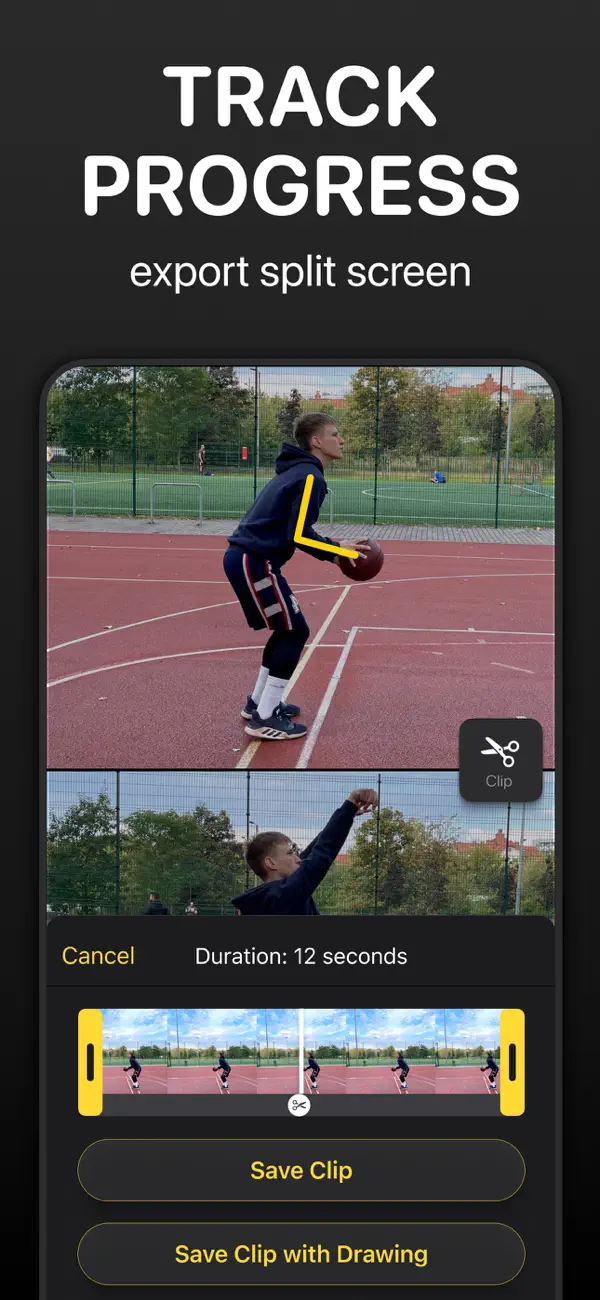
- Scrub to the moment. Play through the recording; when something worth keeping happens, pause on it. Timeline pinch-zoom and frame stepping get you precisely there.
- Tap Clip (⌘S on Mac). The app builds a working window of the seconds around the playhead — by default about 3 seconds before it, with the after-time configurable — and shows a trim sheet with thumbnails.
- Nudge the handles if the default window isn't quite right. The sheet shows the resulting duration.
- Save Clip — or Save Clip with Drawing if you've marked the moment up and want the lines burned in. The clip lands in your Photos library.
- Keep going. The long video is still loaded, untouched, right where you were. Scrub to the next moment and repeat. Ten highlights from a match take a couple of minutes.
Habits that make it faster
- Clip during the first watch. Don't "watch now, cut later" — you'll never find the moments again. Pause-Clip-save as you go, and the review and the cutting are one pass.
- Note the moment, not the perfection. The trim sheet defaults are deliberately generous; a highlight that starts a beat early is fine. Perfect cuts are for the one clip that goes on the club's Instagram — for that one, use the aspect-ratio presets (TikTok, Instagram, YouTube Shorts) in the Frame menu and a full export.
- Clip comparisons too. Quick save works with two loaded videos as well — it composites the side-by-side view into the clip, drawings included.
Clip vs. full export
| Clip (quick save) | Save → Video | |
|---|---|---|
| Scope | Seconds around the playhead | The whole trimmed range |
| Speed | Seconds | Depends on length |
| Best for | Many highlights from one recording | The finished analysis video, GIF, kinogram, chronogram |
 Clip highlights in Coach Video Analysis
The Clip button lives next to the transport controls — one tap from any paused moment, drawings optional, straight to Photos, and the long recording stays untouched. On Mac it's ⌘S. Free to download on iPhone, iPad, and Mac.