The Photos app can play a Slo-Mo clip slower, but real analysis needs three things it doesn't have: arbitrary playback speeds on any video (down to 1/16), single-frame stepping in both directions, and a zoomable timeline so a two-second movement isn't three millimeters of scrubber. That's the toolkit this guide covers.
Why full speed lies to you
A tennis serve takes under a second; the part that decides it — racquet lag through contact — spans maybe four frames. At full speed your eye reads the overall shape and fills in the rest from expectation. Coaches slow footage down not to see more, but to stop the brain from interpolating. The rule of thumb:
- 1/2 speed — rhythm and sequencing errors.
- 1/4 to 1/8 speed — body positions through the movement.
- Frame by frame — instants: contact, release, touchdown, takeoff.
Slow motion the right way
In Coach Video Analysis, the speed control offers 1/16, 1/8, 1/4, 1/2, 1, 1.5, 2, and 4×, plus a fine slider — and it's per video. That matters when comparing two clips: if one was filmed at 240 fps Slo-Mo and the other at 30 fps, you slow only the normal one until both movements run at a comparable tempo. (Filming tip: record fast movements in your camera's Slo-Mo mode; slowing a 30 fps clip to 1/16 shows each frame for half a second, while a 240 fps clip at the same setting still plays 15 distinct images per second.)
Frame-by-frame: the analysis gearbox
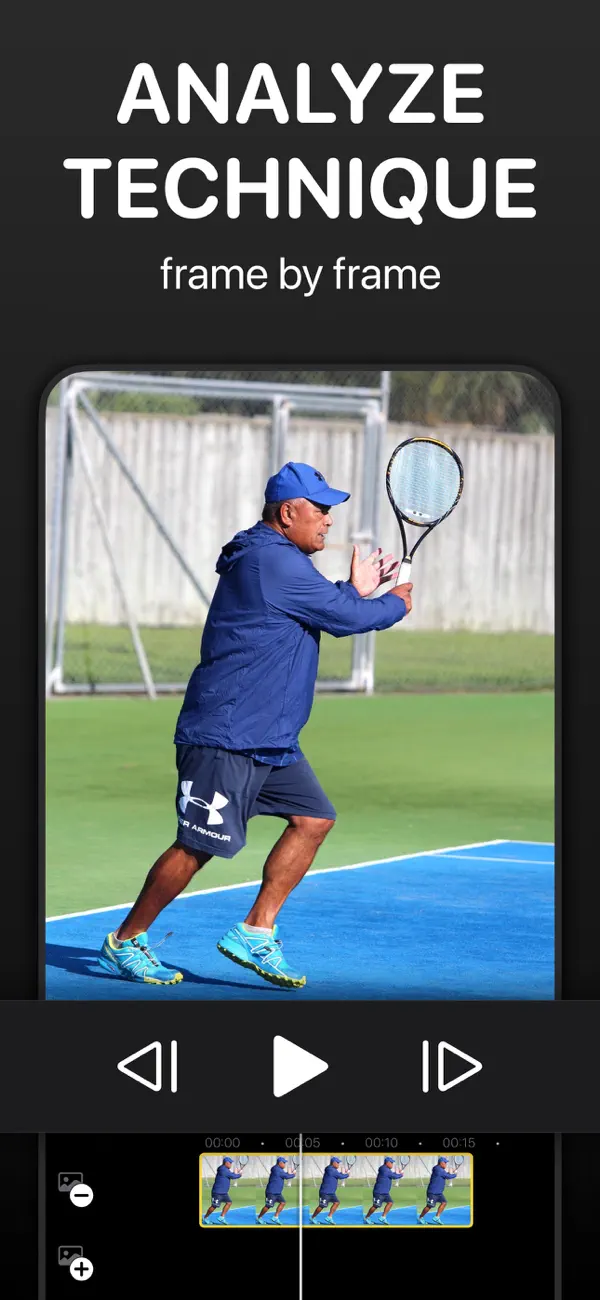
- Tap the prev/next frame buttons to move exactly one frame — both directions, because the frame before contact often explains the frame after.
- Hold a frame button to step continuously — a smooth ultra-slow crawl through the movement.
- Pinch the timeline to zoom it: a one-second movement stretches across the full width of the screen, and the scrubber becomes frame-accurate. Scrubbing is velocity-tiered — move slowly for single frames, quickly to fly.
- Pinch the video to zoom into the picture itself — the grip, the ankle, the release point — and the zoom stays while you step.
- On Mac: ← / → step one frame, ⌘← / ⌘→ skip 5 seconds, and Shift-drag scrubs finely.
Freeze it, mark it, keep it
Frame-by-frame naturally ends on a frame worth talking about. From there: open Markup and draw the angle on the freeze-frame, tap Clip to save the seconds around it, or tap F to add it to a kinogram. And because slow motion review is even more useful with two videos, see comparing two videos side by side — the frame stepping drives both clips at once when they're locked.
 Slow-mo review in Coach Video Analysis
Speeds from 1/16 to 4× per video, tap-or-hold frame stepping, pinch-zoom on the timeline and the picture, and everything works identically with one video or two synced ones. iPhone, iPad, and Mac — free to download, no account.